Calendar
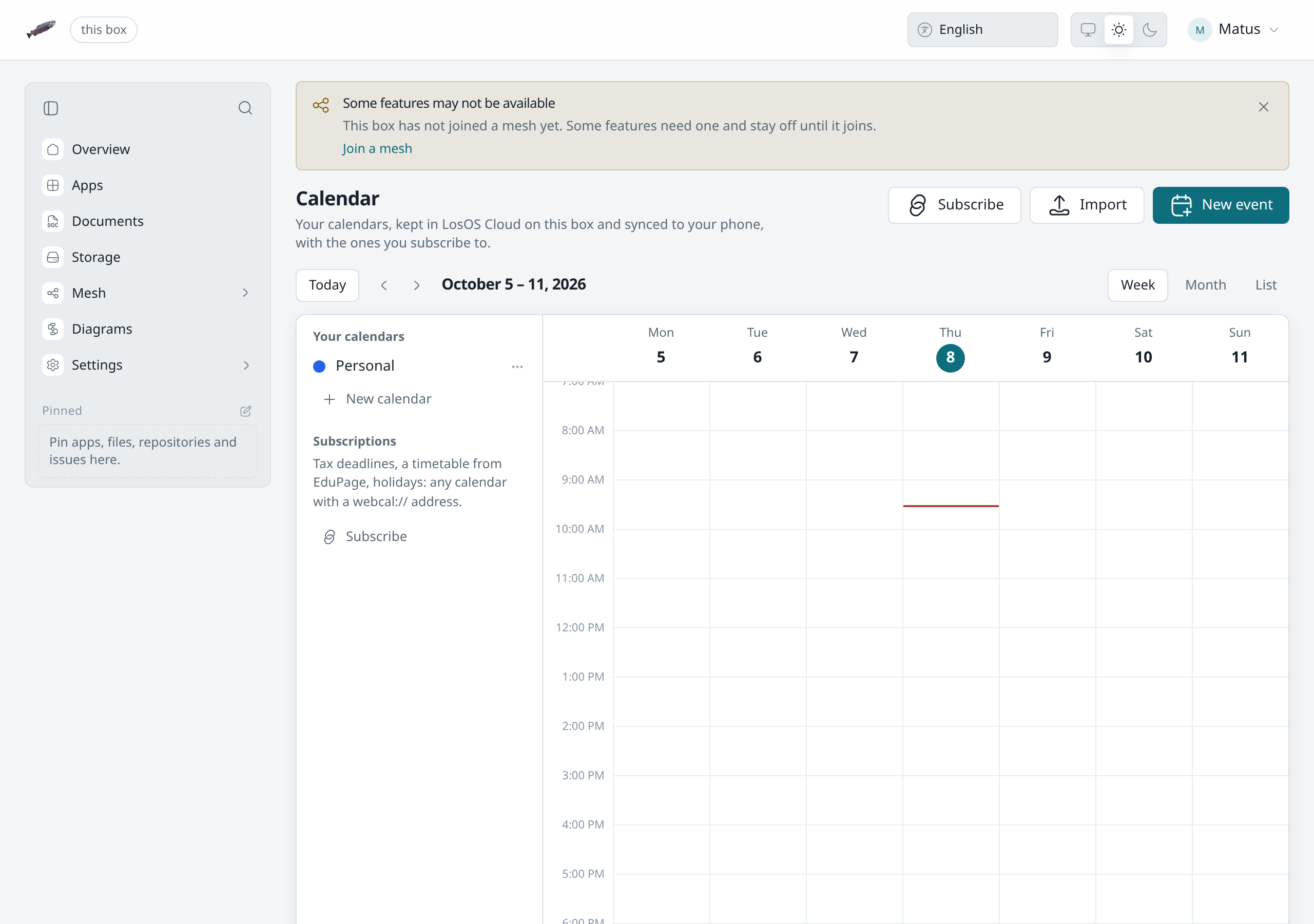
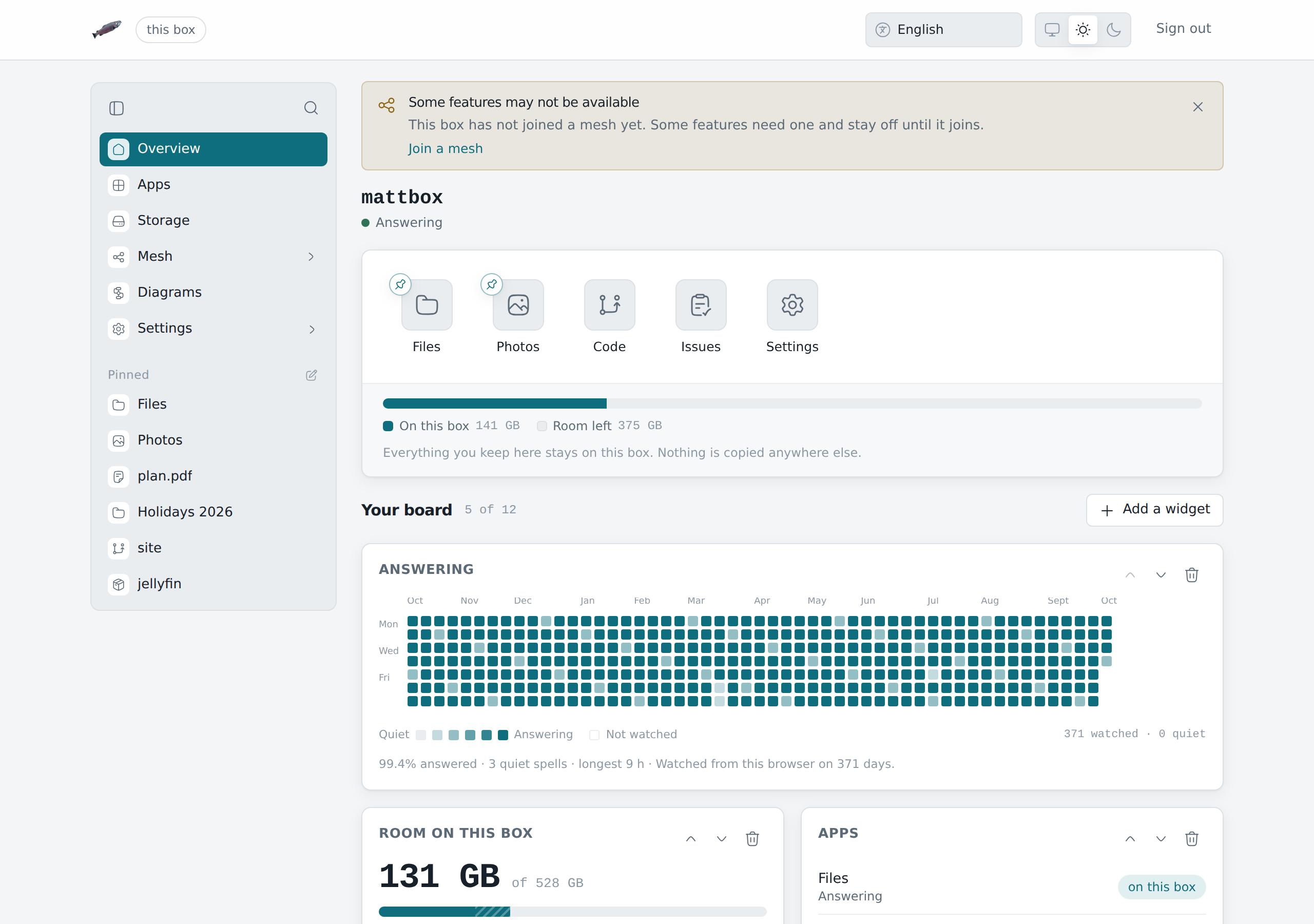
LosOS Calendar keeps your events and the calendars you follow. Calendar
in the sidebar opens it at /calendar. Your calendars are yours alone.
Other people on the box, administrators included, cannot read them.
When Calendar is there
Calendar keeps its events in LosOS Cloud, so it is there on every box that runs LosOS Cloud, whether or not the box shares its storage. Invitations by Mail and calls in Chat need those apps, which run only while the box shares with a mesh it has joined. Without them an event has no call and no invitation, and everything else stays the same.
The spare key opens the admin pages but has no calendar, so Calendar asks you to sign in with your own account.
The views
- Week shows the days from Monday to Sunday by the hour, with all-day events above them and a line at the current time. Double-click an empty hour to start an event there.
- Month shows six weeks. A day with more events than fit shows how many more; click the day to open its week.
- List shows the next six weeks as a list, day by day.
Today, and the arrows beside it, move through the weeks or months.
The column on the left lists Your calendars and Subscriptions. Click a calendar's colour to hide its events or show them again. The page remembers which ones you hid. The … button beside a calendar opens its settings.
Times are shown in your browser's time zone. An event made in another zone, such as an invitation from abroad, keeps its own and is shown at the right time in yours.
Events
New event opens the editor. Only the title is required. An event can:
- last all day, or several days;
- repeat every day, week, month or year, on chosen weekdays and up to a last day. A repeat made on a phone that the editor cannot show, such as "the last Friday of the month", stays as it was unless you choose another;
- have Guests, picked from your contacts and the people on the box as you type;
- be a Video call in Chat, encrypted end to end;
- have a Reminder before it starts;
- have a place and notes.
Click an event to see it. The event shows its guests and whether each one is coming, with a Chat button for each guest who has a chat address. A call has Join the call, which opens it in Chat. Delete on a repeating event asks whether to delete that day or every day.
When a phone changed an event while you were editing it, saving says so instead of overwriting the phone's change. Close the editor and open the event again to see what changed.
Invitations
When you save an event with new guests, Calendar offers to mail each of them
an invitation. The invitation is an ordinary message with an .ics
attachment, so any calendar app can read it, inside the box or outside.
Send invitations on an event sends it again, and Email guests opens
a message to all of them.
An invitation that reaches you in Mail shows what it is about above the message, with Yes, Maybe and No. Your answer puts the event in your calendar and mails your answer to whoever invited you. When the answer reaches them, their copy of the event shows it as soon as they open the message. A cancellation works the same way: opening it marks the event as cancelled in your calendar.
Reminders
A reminder shows on whichever admin page you have open: the event's name, when it starts, and Join the call for a call or Open for anything else. If you allowed notifications in your browser, it also shows as a notification while the tab is in the background. A reminder is only shown while a page of the box is open somewhere.
Subscriptions
Subscribe follows a calendar that someone else publishes, such as a
list of tax deadlines or a timetable from EduPage. Paste its address, which
starts with webcal://, https:// or http://, choose how often to read
it and a colour, and Calendar reads it once before keeping it.
- A subscription is read again on its own, every hour, six hours, day or week, as you chose. Read it now in its settings reads it at once. Events the publisher added, changed or took out change with it.
- A subscription is read-only. Its events cannot be edited here or on a phone; only the publisher changes them.
- The box reads the address in a separate service that has no access to your files and cannot reach the services that listen only inside the box.
- When a read fails, the calendar's settings say why and when it last worked. The events from the last good read stay.
A box that ran Nextcloud keeps its subscriptions: the move to LosOS Cloud brings each one across as a subscription.
Importing
Import takes an .ics file, such as one a calendar app exported, into
one of your calendars or into a new one named after the file. An event that
is already in the calendar is updated rather than added a second time.
Publishing a calendar
Publish as a feed in a calendar's settings gives it an address that
any calendar app can subscribe to, such as
webcal://mattbox.local/cloud/feed/….ics. Anyone who has the address can
read the calendar, without signing in, so share it only with people who
should. Switching publishing off stops the address working. Switching it on
again makes a new address.
On your phone and computer
Phones and desktop calendar apps sync with the same calendars over CalDAV. Set them up as in Calendars and contacts. An event you add on the phone shows up in Calendar, and one you change in Calendar reaches the phone on its next sync. Subscriptions sync to the phone too, read-only.