Office documents
LosOS Office opens text documents, spreadsheets and presentations in the browser and saves them back on the box. Several people can work in one document at the same time, and each sees where the others are typing. The editor is Collabora Online, which runs on the box itself. Documents never leave it.
It opens and saves these types:
| Kind | Types |
|---|---|
| Text | .odt, .docx, .docm, .dotx, .doc, .rtf, .txt |
| Spreadsheets | .ods, .xlsx, .xlsm, .xlsb, .xls, .csv |
| Presentations | .odp, .pptx, .pptm, .ppsx, .ppt |
| Drawings | .odg |
It shows PDF files, Visio drawings and Apple's Pages, Numbers and Keynote files without changing them. Older Microsoft formats open and save, but the OpenDocument and the newer Microsoft formats keep the most.
Word, Excel and PowerPoint files from Microsoft 365 stay what they are: a
.docx is saved back as a .docx with its styles, and a workbook keeps its
formulas. Macros in .docm, .xlsm and .pptm files never run on the
box.
Turning it on
LosOS Office is off on a new box, because it needs memory even when nobody has a
document open. Turn it on under Settings → Advanced with
losos.office.enable, then press Apply. Plan for about 550 MB with no
document open. Each open document adds to that: a few dozen MB for a short
one, more for a large one. The box never lets it take more than 2 GB.
Opening a document
In LosOS Cloud, click a document's name. It opens in LosOS Office across
the whole width of the page, under the box's top bar, at
/cloud/office/ followed by the file's number, so the address can be
bookmarked or sent to someone who may open the file too.
Two bars sit above the document, drawn like the rest of LosOS. The first has the way back, the document's name and whether your changes are saved on the box yet, the people who are in the document with you, the zoom, Download as PDF and Save. The second has what you reach for most: undo and redo, the paragraph style and the font size, bold, italic, underline, lists, alignment, links, tables and comments. A spreadsheet gets number formats, sorting and new rows and columns instead, and a presentation gets new slides and Present. Everything else is in the document's right-click menu.
The bars follow the box's light or dark theme. The pages of a document stay white in both, as they print. A document you may only read opens with a Read only label and no formatting bar. The editor works on the box's https address, the same one LosOS Login uses; a page opened over http moves itself there first.
The editor saves as you work and when you leave, and Save writes your changes at once. In LosOS Cloud each save keeps the earlier contents as a version of the file, and your computers' sync apps pick up the new one.
Working together
When a second person opens the same document, both of you are in the same copy. Each sees the other's cursor and name, and each change shows up on the other screen as it is made. Nobody waits for anyone to finish, and one save keeps everyone's changes.
Markdown documents and presentations
New document and New presentation in LosOS Cloud's files bar make
a Markdown file in the folder you are in, named Untitled document or
Untitled presentation, and open it in LosOS Office. Click the name at the
top to change it. Markdown files are LosOS's own, so they open whether
Collabora is on or not, and any .md file offers Open in LosOS Office
in its right-click menu.
The bar above the text has a button for everything Markdown can write, in the form GitHub and Obsidian both read: headings, bold, italic, strikethrough, highlight, code, subscript and superscript, keys, hidden comments, bulleted, numbered and task lists, quotes, code blocks, formulas in a line or on their own, tables, folded sections, lines across, callouts, links, pictures, links to notes and embeds, tags, block link targets, footnotes and properties. Select some text first and the button marks it; press it again and the mark comes off. Ctrl B, Ctrl I, Ctrl K and Ctrl E work too. Selected text also gets a small bar above it with the marks used most, links, mentions and Ask AI; see the bar over a selection.
A document is written on the left and read on the right, drawn as Notes draws it. Write and Read give either side the whole width. Links to other notes and pictures are found in the same folder, or in the Obsidian vault the file is in. Typing is shared like any LosOS Cloud text file: everyone in the file types together and the box saves a moment after the typing stops.
A presentation is a Markdown file with slides: true in its properties.
Each line of --- starts a new slide. Every slide is laid out the same
way: the text in the middle, centred, and the pictures on the right. The
slides are listed on the left, and the slide the cursor is in is shown on
the right as it will look. Present plays it full screen; the arrow
keys, Space and Page Down move through it and Escape ends it. The PDF
button prints a document as pages, or a presentation one slide a page.
What stays private
The editor runs on the box and reads the document straight from the box's disk. Nothing is sent to Collabora or to anyone else: no update checks, no spelling or translation services, no fonts from the internet.
Opening a document gives your browser a key for that one document, which runs out after ten hours. The editor takes nothing else, so only people who may open the document themselves get into it.
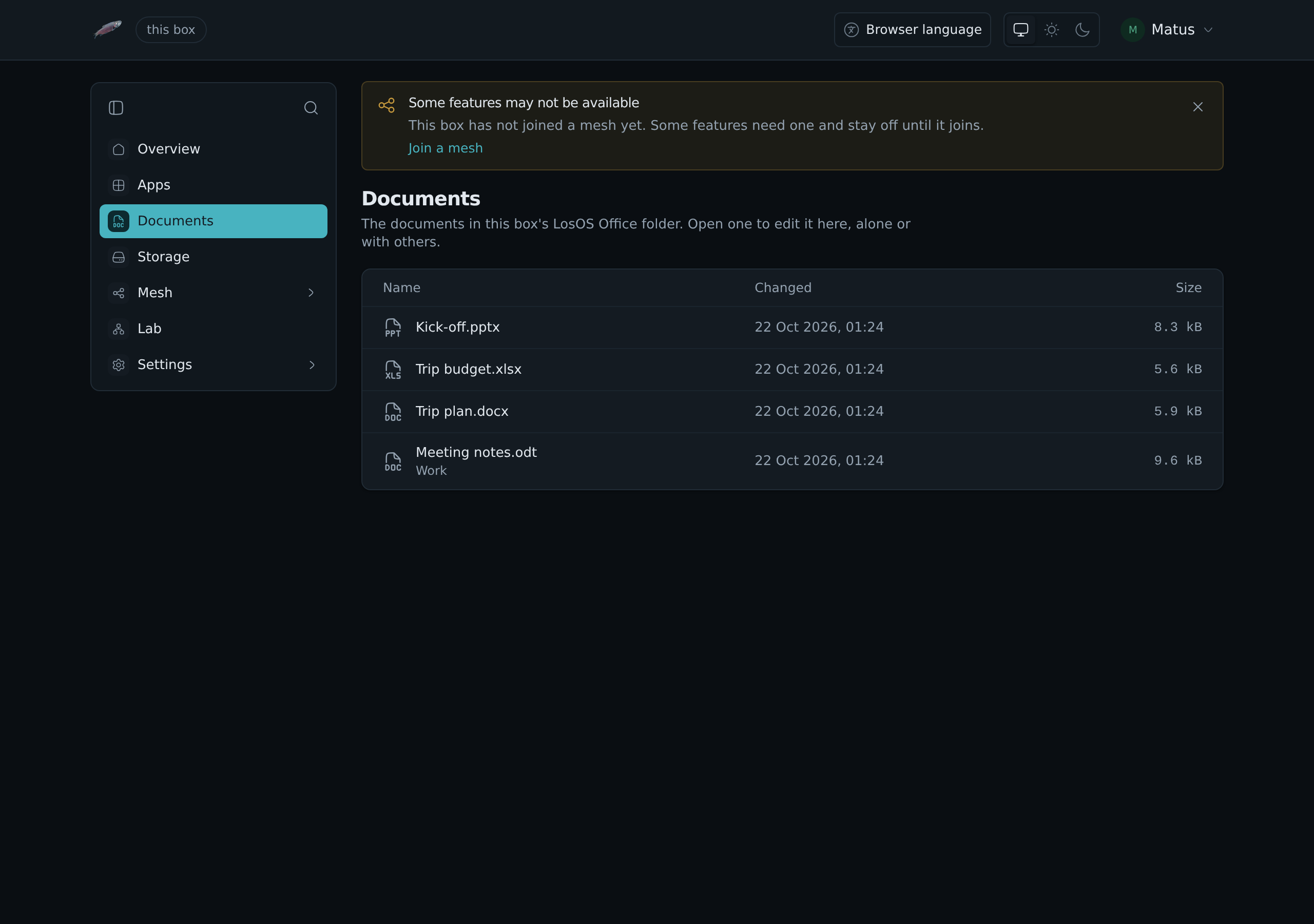
A folder of documents
losos.office.folder names a folder on the box whose documents LosOS
Office edits on its own, instead of LosOS Cloud's. Documents then appears in
the sidebar, after Apps, for everyone who signs in. It lists the
documents in the folder and in the folders inside it, and opens each one in
the editor. Like the rest of the admin pages it answers on the box's own
network only. It is meant for a box that keeps one folder of documents for
the people on its network. Leave it empty otherwise.