The terminal client
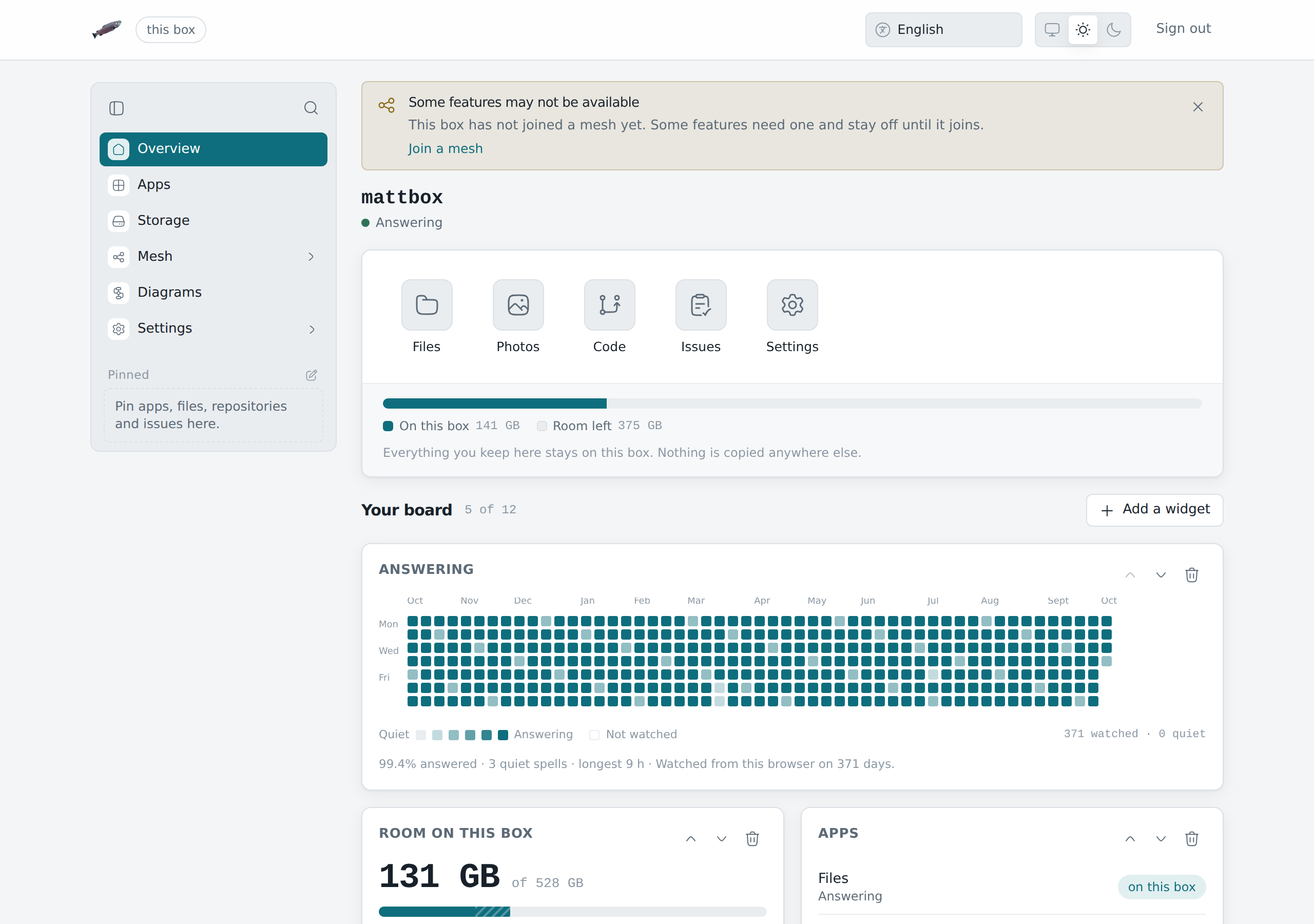
losos is a terminal program that manages a box from another computer.
It shows the same panes as the admin pages, in the same words and colours,
and needs no SSH, because the box has none. Every request it sends is
signed by your own GPG key and encrypted to the box. The box answers the
same way, so only the box can read the request and only you can read the
answer.
It runs on 64-bit x86 Linux.
Before you install the box: put your key on the stick
The box only accepts requests signed by a GPG key it was given at install time. Nothing on a running box can add one later. If it could, anyone who got into the admin pages could add their own key and then make a token for it. So the terminal client needs a little planning: the stick you install from has to carry your key.
The stick from the release page carries no key. A box installed from it works in every other way, and its Access tokens pane says that no key was seeded and makes no tokens. The only way to give that box a key is to install it again from a stick that carries one, and installing wipes it.
You need a GPG key with an encryption subkey, because the box encrypts its
answers to it. gpg --full-generate-key makes one by default. A key the
box could not answer stops the installer before it touches a disk. Export the
public half into a new, empty folder:
mkdir my-losos-stick && cd my-losos-stick
gpg --armor --export you@example.com > owner.asc
Next to it, save this as flake.nix:
{
  inputs.losos.url = "github:dasmatus/losos";
  outputs = { losos, ... }:
    let
      key = builtins.readFile ./owner.asc;
      stick = losos.nixosConfigurations.iso.extendModules {
        modules = [ { losos.access.gpgKeys = [ key ]; } ];
      };
    in {
      packages.x86_64-linux.default =
        stick.config.system.build.isoImage;
    };
}
Then build the stick with Nix on a 64-bit x86 Linux machine:
nix --extra-experimental-features 'nix-command flakes' build
The build compiles the LosOS programs, so the first run takes a while.
The ISO lands in result/iso/. Write it to the stick and
install as usual. After the first run the Access
tokens pane lists your key under Seeded GPG keys. Two keys work too:
list both, as in [ key (builtins.readFile ./other.asc) ].
A stick you build yourself is not signed, so turn Secure Boot off in the firmware to boot it.
Make a token
Open Settings → Access tokens in the admin pages. The pane shows:
- This box's key, the fingerprint the terminal checks on its first connection;
- Seeded GPG keys, the keys the box was installed with;
- Tokens, the ones already made, with when each was last used.
Give the new token a name, pick the key it belongs to, choose Read only or Full access, and pick when it expires. Create token shows it once. Copy it then. The box keeps only a hash and cannot show it again.
A token works only in a request signed by the key it was made for, so a token copied off a screen is no use without that key. A read-only token can look at every pane and change nothing. No token can make, list or revoke tokens, and none can reach the setup wizard or the sign-in. Revoke ends one at once.
Install the client
curl -fsSL https://proxy.losos.dasmat.us/updates/main/x86_64/install.sh | sh
The script downloads the program and its checksum, checks one against the
other, and puts losos in ~/.local/bin, or in /usr/local/bin when you
run it as root. It never asks for a password. Read it first if you like.
It is short and says what it does at the top.
losos keeps your key and tokens in the desktop's keychain (GNOME
Keyring, KWallet or KeePassXC) through secret-tool. On Debian and Ubuntu
that is the libsecret-tools package, on Fedora and Arch libsecret. It
never writes them to a plain file.
Connect
losos key import --gpg you@example.com
losos login http://192.168.1.23
losos
key import --gpg copies your secret key out of GnuPG into the keychain.
If you keep the secret key in a file, losos key import secret.asc does
the same from the file.
login takes the box's address from its screen. Plain http:// is fine
here: the request and the answer are encrypted end to end whatever carries
them. https://<name>.local works too. The box's certificate is its own,
so losos takes the one it sees at login and remembers it. If the box
later shows a different certificate, losos stops and says so. Run
login again to accept the new one once you know why it changed.
login asks the box for its key and shows the fingerprint in groups of
four. Check that it matches This box's key on the Access tokens pane
before you answer yes. Then paste the token, which losos does not echo.
From then on losos remembers the box's key, and refuses to talk to it if
the key ever changes.
losos on its own opens the full-screen view: the sidebar on the left, the
pane on the right, the keys at the bottom. Arrows or j and k move,
Enter changes a setting, Tab moves between the sidebar and the pane, /
searches the panes, ? lists the rest and q quits. A change stays a
draft until you press a to apply it, and the box asks before it rebuilds,
as the admin pages do.
Access tokens, the market, Diagrams and anything that wipes data stay in the admin pages.
Use LosOS Cloud and LosOS Git from this computer
losos cloud setup
losos git setup
Each asks for your LosOS password, the one you sign in to LosOS Cloud with, and sets up the computer you run it on. The This computer pane of the full-screen view does the same with one key.
cloud setup asks the box for an app password for this computer alone
and keeps it in the keychain where the file manager looks for it. LosOS
Cloud then appears in the file manager's sidebar (GNOME Files and other
file managers that read GTK bookmarks), and opening it shows your files
without asking for a password. The file manager asks once to accept the
box's own certificate when it first connects.
git setup asks the box for a LosOS Git token for this computer alone
and keeps it in the keychain. git then gets it from losos whenever it
talks to the box, so cloning and pushing need no password:
git clone https://mattbox.local/git/notshared/notes.git
When the box has its own certificate, git is told to accept exactly that
certificate's key, the same check losos makes.
Both are named after the computer, as in "LosOS on laptop". --device
picks another name. To take a computer's access away, delete its entry
under Security in LosOS Cloud's settings, or under Applications in
LosOS Git's. Running a setup again replaces that computer's password or
token.
In a script
losos call sends one request and prints the answer:
losos call GET /api/state
It exits 1 when the box answers with an error, so a script can check it.
losos --help lists every command.