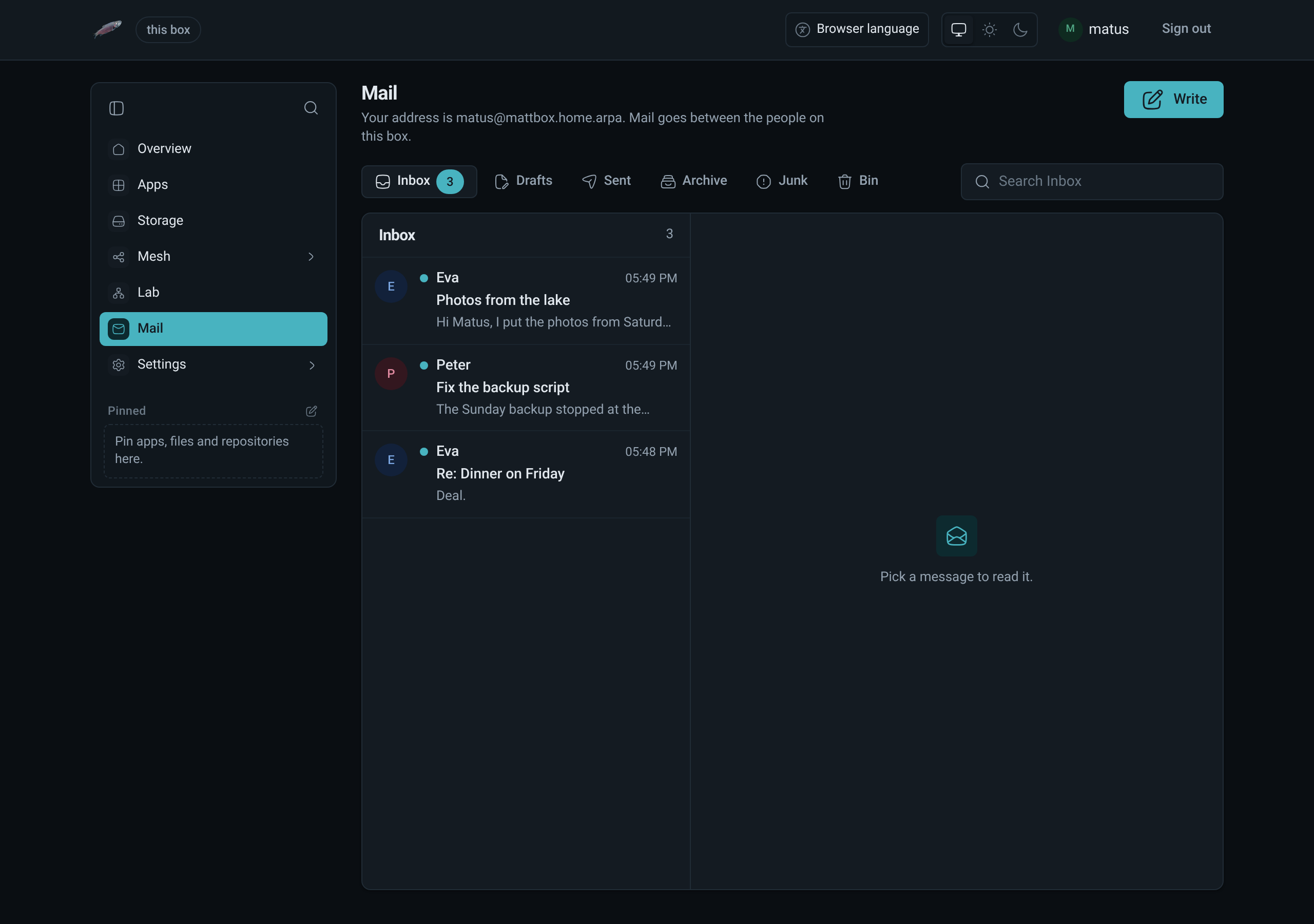
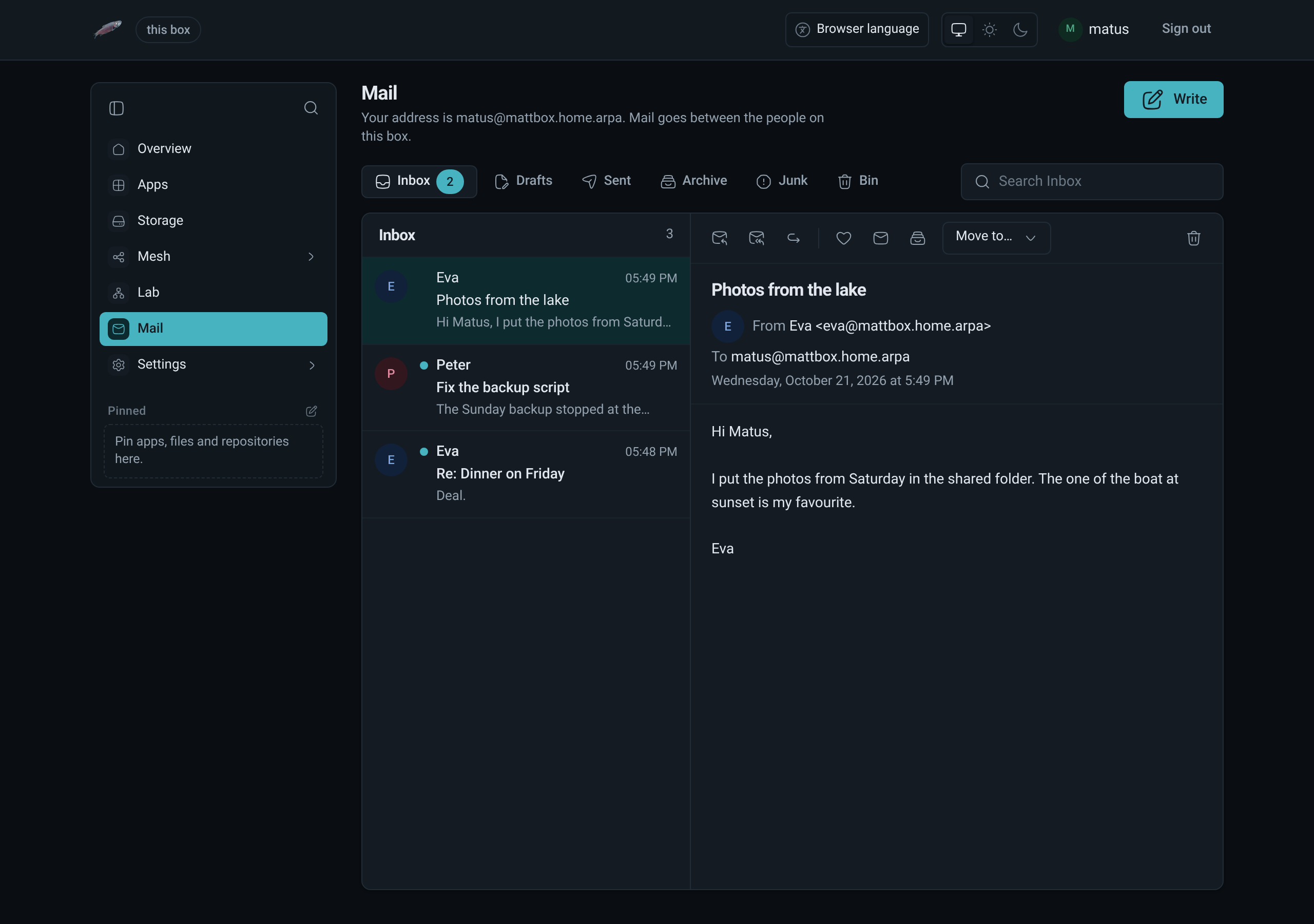
LosOS Mail is a mail client for the people on the box. Each person signed in
through LosOS Login has a mailbox, and Mail in the sidebar opens it at
/mail. The mail server is Stalwart. It runs on the shared side of the
box, under the shared account, and keeps the mailboxes in the shared data
directory.
When Mail is there
Mail exists only while the box shares its storage with a mesh it has joined (see storage modes). With sharing off, or outside a mesh:
- there is no Mail in the sidebar, and
/maildoes not open; - the mail server is stopped;
- the mailboxes stay on the disk, in the shared directory, which the box cannot read while sharing is off.
Once the box shares with its mesh again, Mail comes back with the same mail in it.
Your address
Your address is your LosOS Login name at the box's mail domain, for
example matus@mattbox.home.arpa. The box makes your mailbox the first time
you open Mail. There is no separate mail password: Mail is open while you
are signed in. The spare key opens the admin pages but has no mailbox, so
Mail asks you to sign in with your own account.
Reading and writing
- Folders: Inbox, Drafts, Sent, Archive, Junk and Bin, with your own folders beside them and the unread count beside each. On a wide screen they are a tree on the left of the list; narrower, a row above it.
- Search looks through the open folder: senders, subjects and text.
- Write opens a new message. The To and Cc fields suggest your contacts and the other people on the box. Reply, Reply all and Forward quote the message.
- Flag, Mark as unread, Archive and Move to work on the open message. Delete moves it to the bin, and deleting it from the bin removes it for good.
- Formatted mail opens as plain text. Show formatting draws the sender's layout in a sandboxed frame with no scripts, no forms and no pictures from outside the box, so the sender cannot tell that you opened it. A message with no plain text opens in that frame straight away.
- Attachments download to your computer, and never open inside the page. Files and LosOS Cloud says what else you can do with them.
- When the sender is on this box and the box has Chat, Chat and Call in the message's toolbar start a conversation with them.
- Right-click a message in the list to reply, flag, archive or move it without opening it; see the right-click menu.
Your own folders
Make folders of your own beside Mail's and inside them, as deep as you like.
- New folder (the folder icon at the top of the tree) asks for a name and where to put it. A name cannot have a slash in it, and two folders in the same place cannot share a name.
- Right-click a folder to open it, make a folder inside it, rename it, move it to another folder or to the top level, or delete it. Mail's own folders only open and take folders inside them.
- Drag a message onto a folder to move it there. Drag one of your folders onto another to put it inside, or onto the empty space under the tree to bring it to the top level.
- Deleting a folder moves its messages to the bin first, so nothing is lost by a slip. A folder with folders inside it is not deleted until those are moved or deleted.
Filters
Filters sort new mail as it arrives. They are kept and run by the mail server, so they work while Mail is closed and nobody is signed in.
- Filters, next to Write, lists them in the order they run. The first filter that matches a message decides what happens to it.
- A filter looks at who the message is from, who it is to (To or Cc), or its subject, for text it contains. Letter case does not matter. It can ask for every condition to match, or any one of them.
- It then moves the message to a folder (the bin included, which is how a filter deletes), marks it read, flags it, or any of these together.
- The switch beside a filter turns it off without losing it, and the arrows change the order.
- Right-click a message and choose Filter mail like this… to start a filter for its sender.
- Filters act on mail that arrives after they are saved; mail already in a folder stays where it is. Deleting a folder turns off a filter that only moved mail into it.
Files and LosOS Cloud
- Save to LosOS Cloud beside an attachment puts it in the Mail folder of your LosOS Cloud. Open then opens it in the app that edits it: Notes for Markdown, the shared editor for other text files.
- While writing, Attach from this computer and Attach from LosOS Cloud add files, up to 20 MB in all. Forward keeps the message's attachments.
- In LosOS Cloud, right-click a file and choose Send by mail to start a message with it attached.
Ask the box's AI
Summarise in the message's toolbar asks the box's own language model about the open message. The model runs on the box, so the message and the answer stay there, and it reads only the message you asked about. It answers one question at a time; on a small box an answer can take a minute or two. Text in a message that tells the AI to do something counts as part of the message, not as your request.
Questions about mail, files and notes go to Gemma 3 1B, a model for text.
Build with AI keeps a model for code. The box downloads each model
once, the first time it is online, and keeps only one in memory at a time.
An administrator can pick another model under Settings, Advanced
(assistant.model). Gemma is provided under and subject to the Gemma Terms
of Use found at ai.google.dev/gemma/terms.
What Mail does not do yet
Mail goes between the people on this box only. Mail to another domain is refused with a message that says so, and nothing arrives from outside. Receiving mail from the internet needs a public address and port 25, which a home connection rarely has. The box also offers no IMAP or SMTP for other mail apps: Mail in the admin pages is the only way in.